# Mattermost
Read this document to get familiar with Mattermost. It is used to communicate with XR groups as well as have 1-to-1 conversations. You can also [watch this video](https://cloud.extinctionrebellion.uk/s/ZgYtw2Q978dfrEJ) for a general introduction to Mattermost and its benefits.
#### If you need support with:
- **How to use Mattermost**
- **Getting onto Mattermost**
- **Using the Hub (and XR's other services including the UK Cloud, UK Forums)**
Please join one of the weekly sessions:
**Mondays 17:30-18:00 (quick questions)**
**Thursdays 18:30-19:30 (longer training)**
Join Zoom Meeting
[https://us02web.zoom.us/j/89528558324?pwd=R0JWZUovZk8zUy9RMXRjZGFGTmJaUT09](https://us02web.zoom.us/j/89528558324?pwd=R0JWZUovZk8zUy9RMXRjZGFGTmJaUT09)
Meeting ID: 895 2855 8324
Passcode: 278766
### First Steps
#### Getting Access
Before you can access Mattermost you first need to sign up to the XR UK Communications Hub. For instructions on how to do that please read [this guide](https://rebeltoolkit.extinctionrebellion.uk/link/420#bkmrk-page-title).
Once you are on the Hub you can access Mattermost in a few ways:
1) Click on the Mattermost icon from the [Comms Hub main page](https://auth.extinctionrebellion.org.uk/).

2) Type [https://organise.earth](https://organise.earth) into your browser and hit **Enter**.
Once this is done we recommend adding the page to your bookmarks/favourites so it's easier to find in future.
**Note:** Mattermost is also available as an app so you can install it to your smartphone or tablet. Please read [this document](https://rebeltoolkit.extinctionrebellion.uk/link/433#bkmrk-page-title) or [watch this video](https://cloud.extinctionrebellion.uk/apps/files/?dir=/Hub%20Front-end%20Redesign/Content%20%26%20Assets&fileid=1179269) for instructions on how to do this.
#### Landing Page
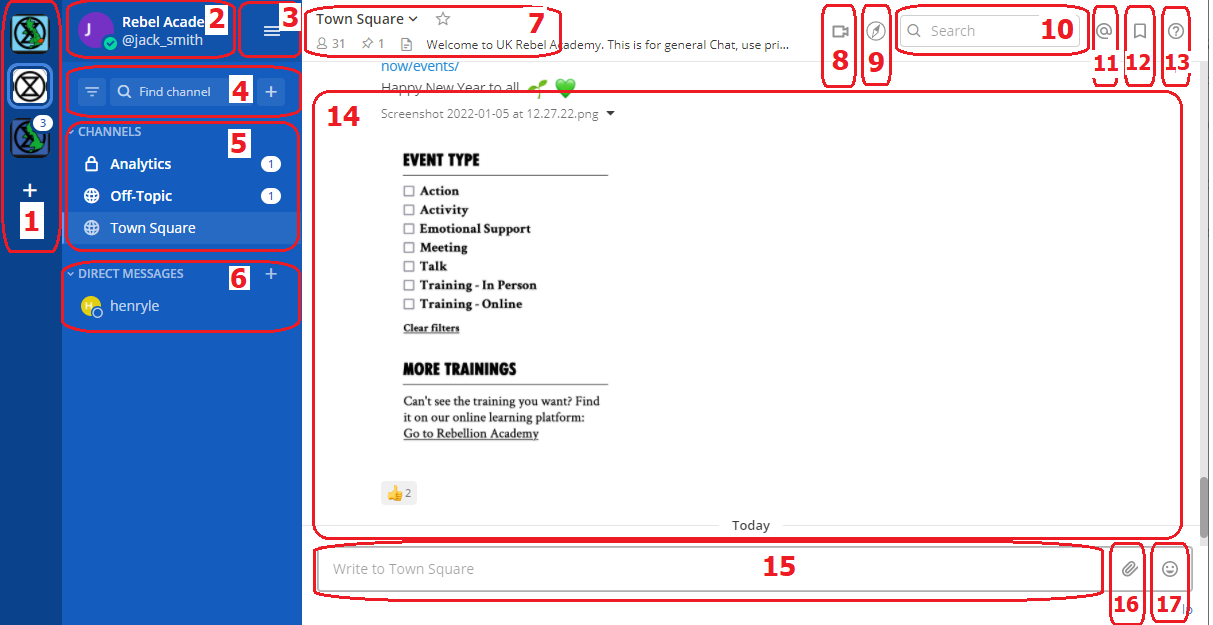
When you have logged in to Mattermost you will see a screen that looks a lot like this:
[](https://rebeltoolkit.extinctionrebellion.uk/uploads/images/gallery/2022-01/New_mm.png)
Note that we have added numbers to the screenshot and we will refer to this image throughout the document.
#### Navigation
Please [watch this very helpful video](https://cloud.extinctionrebellion.uk/apps/files/?dir=/Hub%20Front-end%20Redesign/Content%20%26%20Assets&fileid=1179269) for a guide to navigating Mattermost: from using Teams and Channels to saving and threading messages.
### Teams
Teams in Mattermost are basically collections of Channels. They appear on the far left of your screen (1) and you can click on the icons to switch between them.
You will be added to the UK Team by default but your group might use other Teams and you will see these too.
#### Checking who else is in my Team
To see the other members of a Team, click on the Main Menu (3) and select **View Members**.
#### Joining other Teams
For UK Circles with their own Team, you can contact them via their Reception Channel in UK Team.
To join a public Team, click on the **+** sign below your list of Teams (1). This will bring up a list of all the other XR public Teams you are able to join, including for other countries. Click on one of the list of Teams to add yourself.
If you want to be added to a private Team (e.g. for your local group) you will need to speak to a Group Admin/Tech Champion who will be able to send you an invite.
#### Leaving a Team
To leave a Team, open the **Main Menu** (3), and then select the option **Leave Team**.
Note that once you have left a Team, if you want to re-join at any point, you will have to join (or be invited to) all the Channels you belong(ed) to previously.
### Channels
Channels are just another name for group chats. Every local group/working group set up on the Hub will have several of these Channels that you will be added to if you are part of that group.
**Note:** For a walkthrough of Channels you can watch the [Finding and Joining Channels](https://tube.rebellion.global/videos/watch/54f8cf39-8469-4f78-bf30-db685ec9b002) video (4 mins).
#### Type of Channels
 Most Channels are public, so anyone in the Team can join them. They have a picture of the world next to them. Some Channels are private, by invitation only, and they have a padlock next to them.
#### Joining Channels
To join a public Channel either click in **Find Channel** and search, or click the **+** button to browse Channels on the left (4). This will bring up a list of all of the public Channels in your Team. Click on any of these in the list to add yourself.
If you want to join a private Channel you should ask someone already in that Channel to add you. You could also post a message in that group's [reception Channel](https://rebeltoolkit.extinctionrebellion.uk/link/394#bkmrk-contacting-other-gro) asking to be added.
#### Leaving a Channel
To leave a Channel, click on the its name at the top of the screen (not where it appears on the left) and then select the option **Leave Channel**. Alternatively if you hover over the Channel on the left three dots will appear next to it and from that menu you can select **Leave Channel**.
#### Muting Channels
You can mute Channels if you want to stop receiving notifications from it but don't want to leave. To do this click the Channel heading (at the top of the screen), or hover over the Channel on the left and click the three dots, then click **Mute Channel**. You can also set whether you want to be notified if someone uses `@all` or `@channel` by clicking on **Notification Preferences**.
#### Default Channels
Every Team has two default Channels that you will be added to when you are added to the team:
- **Town Square:** This is the communal area in each team that should be used for announcements and general XR-related discussions.
- **Off Topic:** This is a place where team members can discuss things that aren't directly related to the business of the team (e.g. social activities).
**Very Important:** Please do not rename these default Channels as it will cause a lot of confusion.
**Note:** It is not possible to leave the Town Square Channel. If you want to stop receiving notifications you should mute the Channel instead.
#### Sorting Channels
If you hover over the **CHANNELS** header on the left (5) then click on the three dots you can sort your Channels one of three ways:
* Alphetically
* by Recent Activity - the most recent will be at the top
* Manually - you can drag the Channels up and down into the order you prefer
If this isn't enough you can **Create New Category** which enables you to sort Channels into groups that suit you, for instance relating to particular projects or areas of interest. Once you have created your categories you can drag and drop Channels between them.
#### Contacting other groups
All XR UK groups on Mattermost have a public 'Reception' Vhannel in the UK Team, and their members will be added to them by default (you will probably be in some yourself). This lets rebels from other groups find and speak to them.
To join someone else's reception Channel, go to the UK Team, click **Find Channel** or **+** (4), to search or browse for the Channel you want to join and then click **Join**. The Channel will then appear in your Channels list.
#### Creating Channels
**Important:** You should not create public Channels from inside Mattermost. Instead please get your Group Admin/Tech Champion to do this for you using the Hub.
To create a private Channel:
1) Click on the **+** sign next to **Find Channel** (4)
2) Select 'Create new Channel'
3) Enter a name for the new Channel (and optional purpose and header), ensure Private is selected.
4) Click **Create Channel**
#### Channel headers (7)
Underneath the Channel name at the top of the page is the Channel header.
It is a useful place to put information about what the Channel is for and to store some useful links (e.g. your group's Forum or your regular Zoom meetings).
To see all the info click on the Channel name:
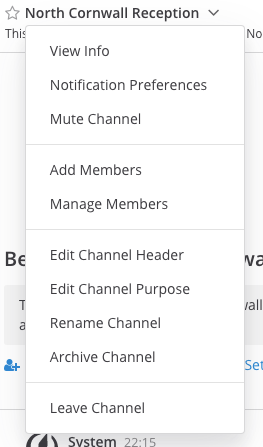
then click on **View Info**.
If you want to change what is written in the header click on **Edit Channel Header**. If you want to add links to this section the process is the same as [here](#bkmrk-adding-links).
**Please confirm with your Group Admin before making any change to the Header.**
### Sending Messages (15)
You can write messages by typing in the box at the bottom of the screen. To send them hit **Enter**. The message will be sent to the Channel or Direct Message you are currently in.
#### Alerting people to messages
If you want a particular person to read a message you are sending, you can tag them by writing '@' followed by their username (e.g. `@xrukadmin`). This will send them a notification.
**Important:** You can also use `@all` or `@channel` to notify everyone in a Channel but please use this responsibly as for larger groups it is rarely appropriate and may annoy people.
#### Sending Direct Messages (6)
To send someone a Direct Message (instead of posting in a Channel):
1) Click the **+** sign to the right of the heading **DIRECT MESSAGES** to the left of the screen (6)
2) Select the users you want to message (up to a maximum of 6)
3) Write and send your message
All of the Direct Message conversations that you have had will appear below the **DIRECT MESSAGES** heading to make it easier to contact them again.
Next to each name, an icon shows whether they are online or not.
Clicking on a username will display your Direct Message history with that user.
Users you do not need to contact regularly can be removed from this list by pressing the cross to the right of their name.
#### Sorting your Direct Messages
Much like with Channels, Direct Messages can be sorted alphabetically or most recent first. You can also choose how many to show (all, 10, 15...). To change these settings hover over **DIRECT MESSAGES** then click the three dots to the right of it.
#### Replying to messages
It is possible to reply to messages posted in Channels or Direct Messages using 'threads'. These are helpful if you are having multiple conversations at once so people don't get confused about which messages are related to which discussion.
To reply to a message in a thread click on the **Reply** icon:
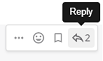
**Note:** For a full explanation you can watch the [threading messages](https://tube.rebellion.global/videos/watch/990bacfe-a3df-4b5f-9870-8818f2ba3db5) video (5 mins).
#### Reacting to messages
To add a reaction (e.g. a thumbs up or heart icon) to a message click on the **Add Reaction** icon:
.
To post a reaction to a message you can click on the Emoticon icon on the bottom RHS (17).
#### Searching for messages (10)
Use the search box to find messages and replies that match the search terms that you enter. All Channels that you are a member of in the current Team are searched.
**Note:** For a full explanation you can watch the [Searching for messages](https://tube.rebellion.global/videos/watch/0def354f-557d-411b-950d-bf61a6e6a59b) video (3 mins).
#### Saving messages
You can click on the 'save' icon (like a bookmark) next to a message to save it for later, then bring up all your saved messages by clicking on the 'Saved posts' icon at the top right of the screen (12).
**Note:** For a full explanation you can watch the [Saving messages](https://tube.rebellion.global/videos/watch/0c6a4cdc-94f4-4493-9f1b-d4ad757df710) video (3 mins).
#### Adding links
To add a picture click on the paperclip icon on the bottom LHS of the screen (16).
To add a nicely formatted link to your message, write the text you want to show in square brackets immediately followed by the link URL in round brackets. For example:
`Check out this fantastic [guide to Mattermost](https://rebeltoolkit.extinctionrebellion.uk/link/394#bkmrk-page-title)!`
will look like:
Check out this fantastic [guide to Mattermost](https://rebeltoolkit.extinctionrebellion.uk/link/394#bkmrk-page-title)!
when sent.
#### Other formatting tips
Here are a few simple tips to make your messages look better:
- \*\*bold\*\* displays as **bold**
- \_italic\_ displays as _italic_
- \~\~strikethrough\~\~ displays as ~~strikethrough~~
- \`\`\`typewriter style\`\`\` displays as ```typewriter stye```
- \>quote displays as
>quote
#### Copying messages
It can be difficult to copy messages in order to share them in multiple Channels without losing the nice formatting and any links.
Currently the only way this is to:
1. Open the main menu (3) and click on **Account Settings**.
2. On the sidebar click **Advanced**.
3. Set **Enable Post Formatting** to **Off**.
4. Copy and paste the messages that you want to share.
5. Return to **Account Settings -> Advanced** and set **Enable Post Formatting** back to **On**.
### Video Calls (8)
If you are in a Direct Message chat clicking the camera link will start a video call between you and the person (or people) in that chat; if you are in a Channel it will open a video chat link for anyone in that Channel to join, using Big Blue Button. It posts a link for everyone to click on to join the call.
### Rebel Compass (9)
This takes you to a bunch of links and resources from XR Global including plaforms, videos, documents, trainings, events etc.
### Notification settings
**Note:** For a walkthrough of all the content in this section you can watch [Notifications](https://tube.rebellion.global/videos/watch/0e7e6f19-6ab8-47de-b770-fc19923f47c5) (5 mins) and [Acccount Settings](https://tube.rebellion.global/videos/watch/ad184cf5-f794-4d20-a539-0b26072fe5bd) (4 mins) videos.
To get the most out of Mattermost we strongly encourage you take the time to get your notification settings set up just right. This will make sure that you don't get overwhelmed by huge numbers of irrelevant notifications, and also that you won't miss any important messages that you need to see.
To modify the notification settings in Mattermost, open the main menu (3) and click on **Account Settings**. This will present you with a screen that looks something like this:
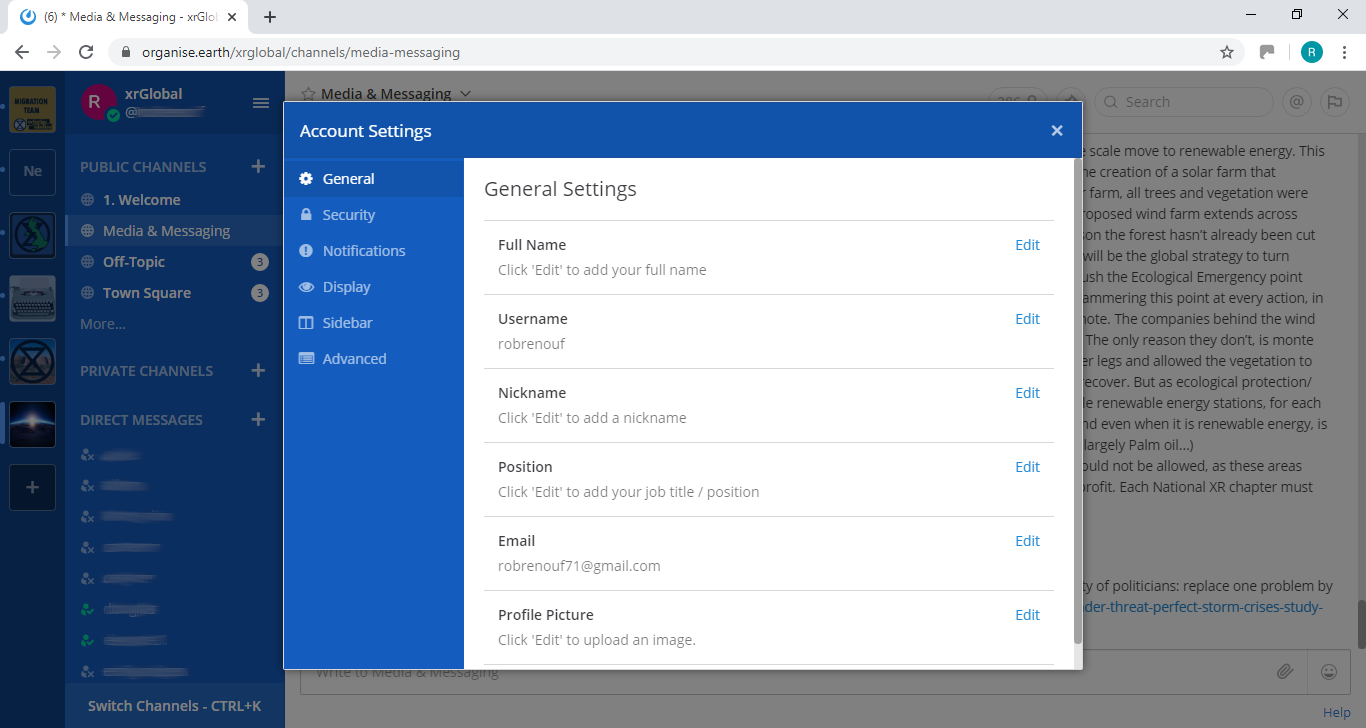
To access your notification settings click on the **Notifications** tab.
#### Setting desktop/mobile notifications
To modify these settings go to the notification settings page ([link](#bkmrk-notification-settings)) and click **Edit** under the sections labelled **Desktop Notifications** or **Mobile Push Notifications**.
We recommend that **Send desktop notifications** (under **Desktop Notifications**) and **Send mobile push notifications** (under **Mobile Push Notifications**) are set to either **For all activity** or **For mentions and direct messages**.
#### Enabling email notifications
You can enable email notifications of Mattermost messages. To do this:
1) Open your notification settings ([link](#bkmrk-notification-settings))
2) Under **Email Notifications** click **Edit**
3) Under **Send email notifications** tick **Immediately**
4) Click **Save**
#### Setting notifications for reply threads
To be notified of all messages that happen in a [thread](#bkmrk-replying-to-messages) you participated in you should:
1) Open your notification settings ([link](#bkmrk-notification-settings))
2) Under **Reply notifications** click **Edit**
3) Tick **Trigger notifications on messages in reply threads that I start or participate in**
4) Click **Save**
#### Personalising your mentions
It is possible to get notified everytime a certain word gets mentioned in one of your channels. By default this will just be your username including the `@` symbol (e.g. `@myusername`) but you can add extra words if you like. For example, if you do a lot of work on the Rebel Toolkit you may want to add `toolkit` to your list of words that trigger mentions.
To set this up:
1) Open your notification settings ([link](#bkmrk-notification-settings))
2) Under **Words That Trigger Mentions** click **Edit**
3) Tick any of the tickboxes that apply
4) Add any additional keywords (e.g. `toolkit`) in the space below the tickboxes
4) Click **Save**
#### Seeing recent mentions (11)
Click on the top right @ sign to see posts where you have been mentioned recently.
#### Grouping unread messages together
You can get Mattermost to collect unread messages at the top of the sidebar so they are easier to find. To do this:
1) Open the Mattermost settings ([link](#bkmrk-notification-settings))
2) Click on the **Sidebar** tab
3) Under **Channel Grouping and Sorting** click **Edit**
4) Tick **Unreads grouped separately**
5) Click **Save**
#### Setting up 'out-of-office' messages
If you will not be reachable on Mattermost for a while and would like to set an automatic reply that anyone who messages you will see then you should:
1) Open your notification settings ([link](#bkmrk-notification-settings))
2) Under **Automatic Direct Message Replies** click **Edit**
3) Tick **Enabled** and write your message
4) Click **Save**
You can follow the same process to disable the automatic messages when you return.
#### Getting rid of annoying messages from 'System'
In your Channels you will probably see lots of messages from 'System' notifying you that people have been added to, and left the Channel. You can turn these off by:
1) Open the Mattermost settings ([link](#bkmrk-notification-settings))
2) Click **Advanced**
3) Set **Enable Join/Leave Messages** to **Off**
### Further information
#### Setting your status
To change your status (which can be **Online**, **Away**, **Do Not Disturb** and **Offline**):
1) Click on your image/icon at the top left of the screen (2)
2) Click on the option that you want
#### Adding a profile picture
To add a profile picture to your Mattermost account:
1) Click on the main menu button (3)
2) Click on **Account Settings**
3) Under **General Settings > Profile Picture** click **Edit**
4) Upload an image of your choice
5) Click save!
#### Logging out
To log out of Mattermost, open the main menu (3) and then click on **Logout**.
#### Other places to find information about Mattermost
There is a help button (13) at the top RHS of the screen.
Here is useful list of other resources about Mattermost that you might find useful after reading this guide:
- [Mattermost User’s Guide](https://docs.mattermost.com/guides/user.html)
This is the official guide to Mattermost. It goes into a lot more detail than this guide but is more complicated and not all of it is relevant to XR.
#### Here is an example of how to embed an animated image from the Mattermost docs